> ## Documentation Index
> Fetch the complete documentation index at: https://docs.retail-q.com/llms.txt
> Use this file to discover all available pages before exploring further.
# Google Analytics
> Connect Google Analytics properties to retailQ
## Installation
We use the Google Analytics BigQuery connector to get access to events tracked by GA4. This gives you detailed access to how your site performs and how your customers interact with it.
Analytics events are only available to us from the date you install the connector.
You will need admin permissions for the Google Analytics property to install
this connector.
Log in to your [Google Analytics account](https://analytics.google.com).
[Click
here](https://analytics.google.com/analytics/web/#/?pagename=admin-integrations-big-query\&utm_source=gahc\&utm_medium=dlinks)
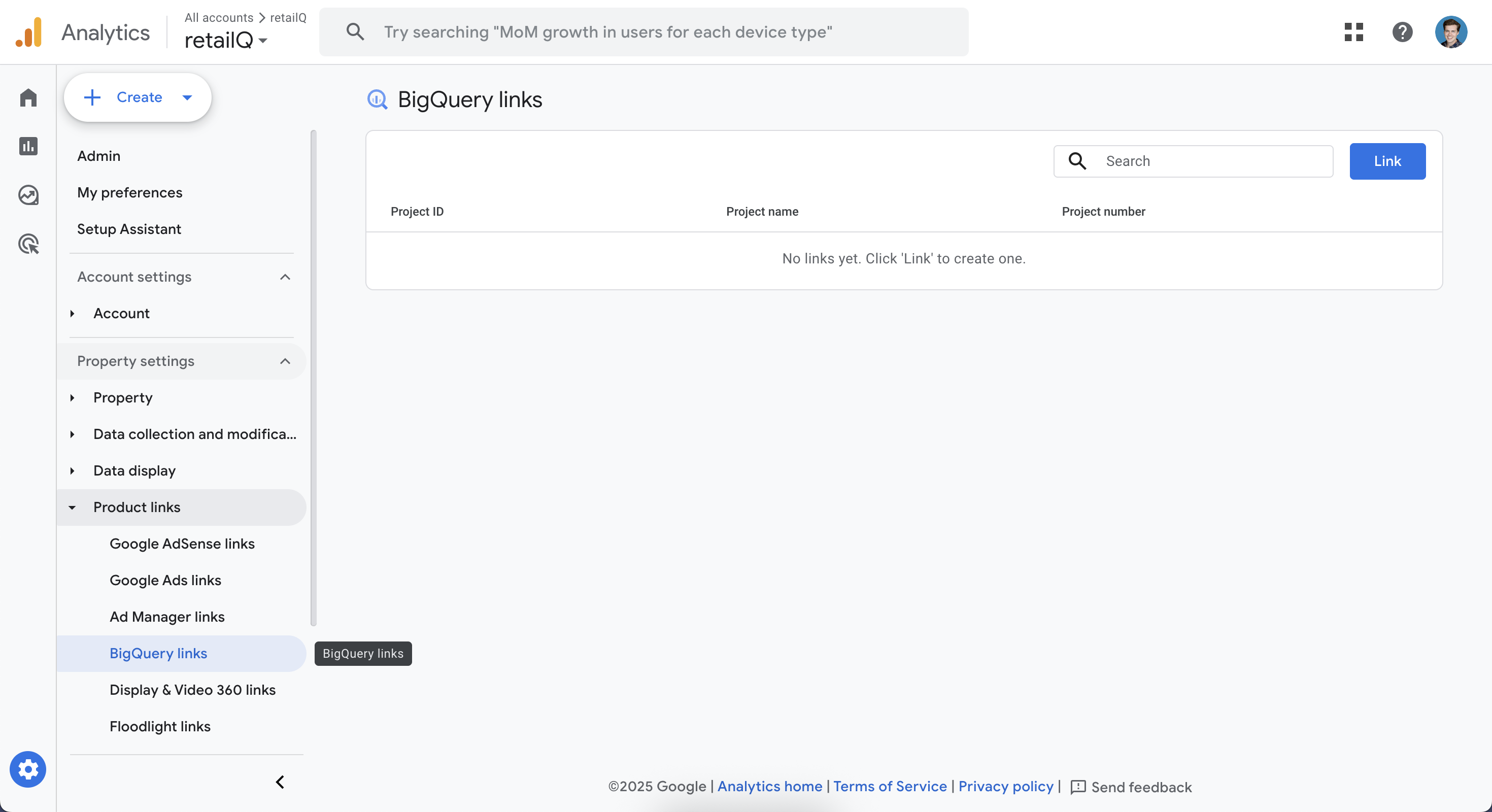
or navigate to 'Admin' > 'Product Links' > 'BigQuery Links' in the left-hand
menu.
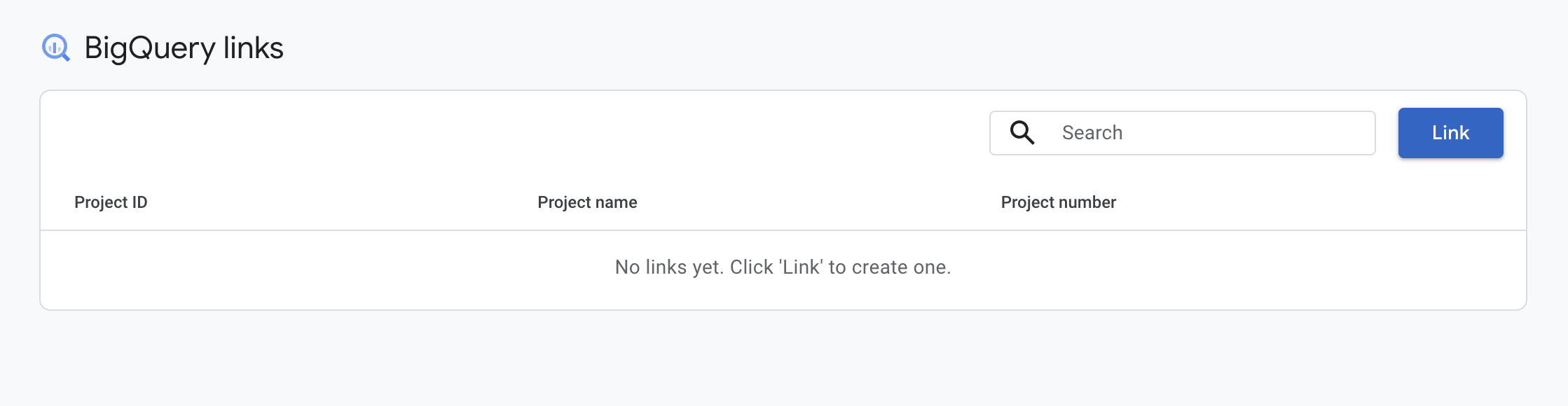
 Click '**Link**'
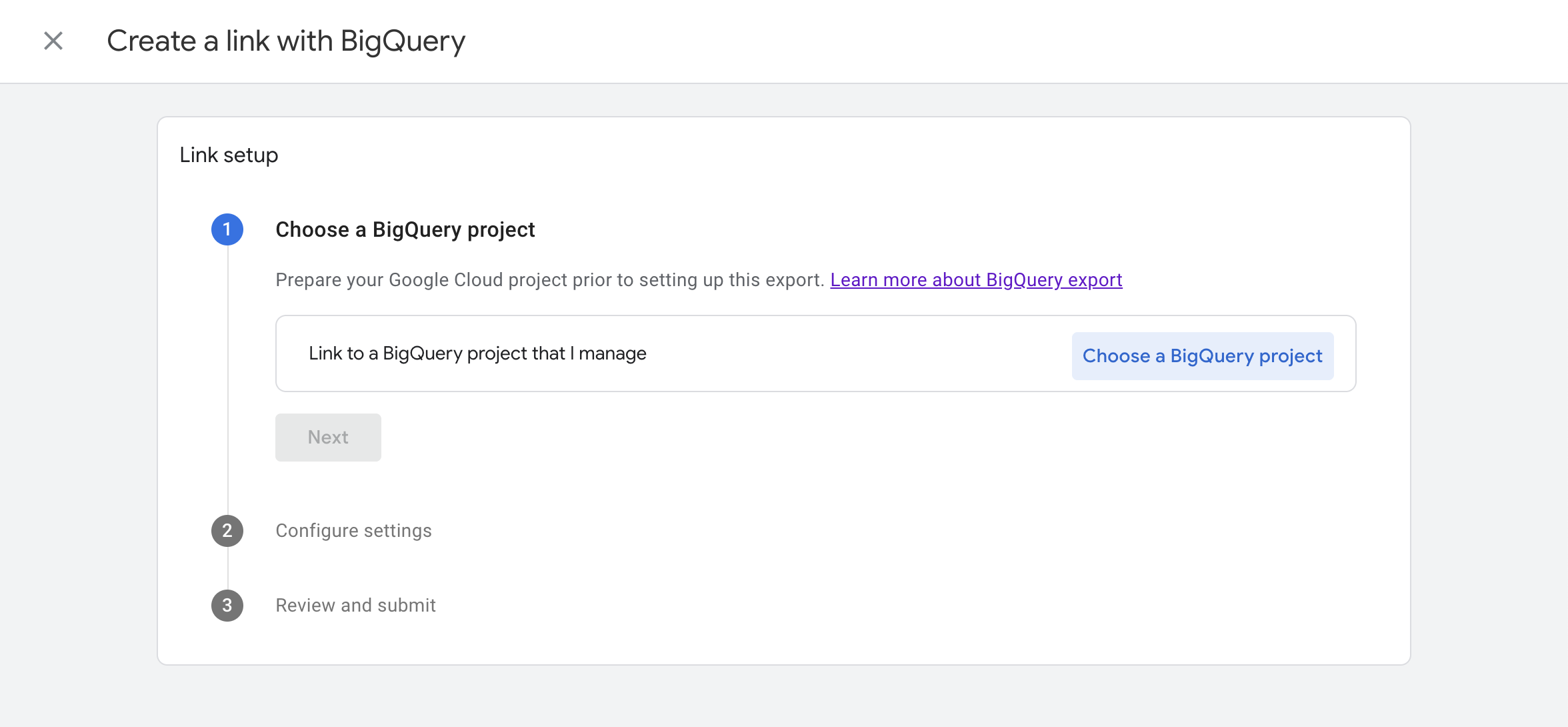
 Click '**Choose a BigQuery project**'
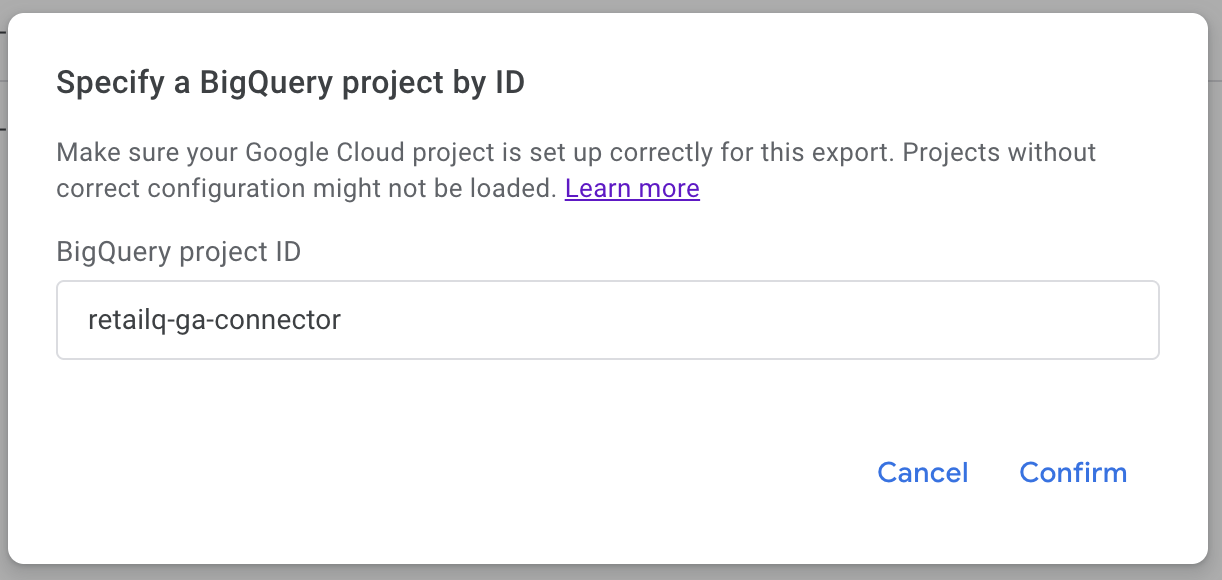
 Click '**Specify by project ID**'
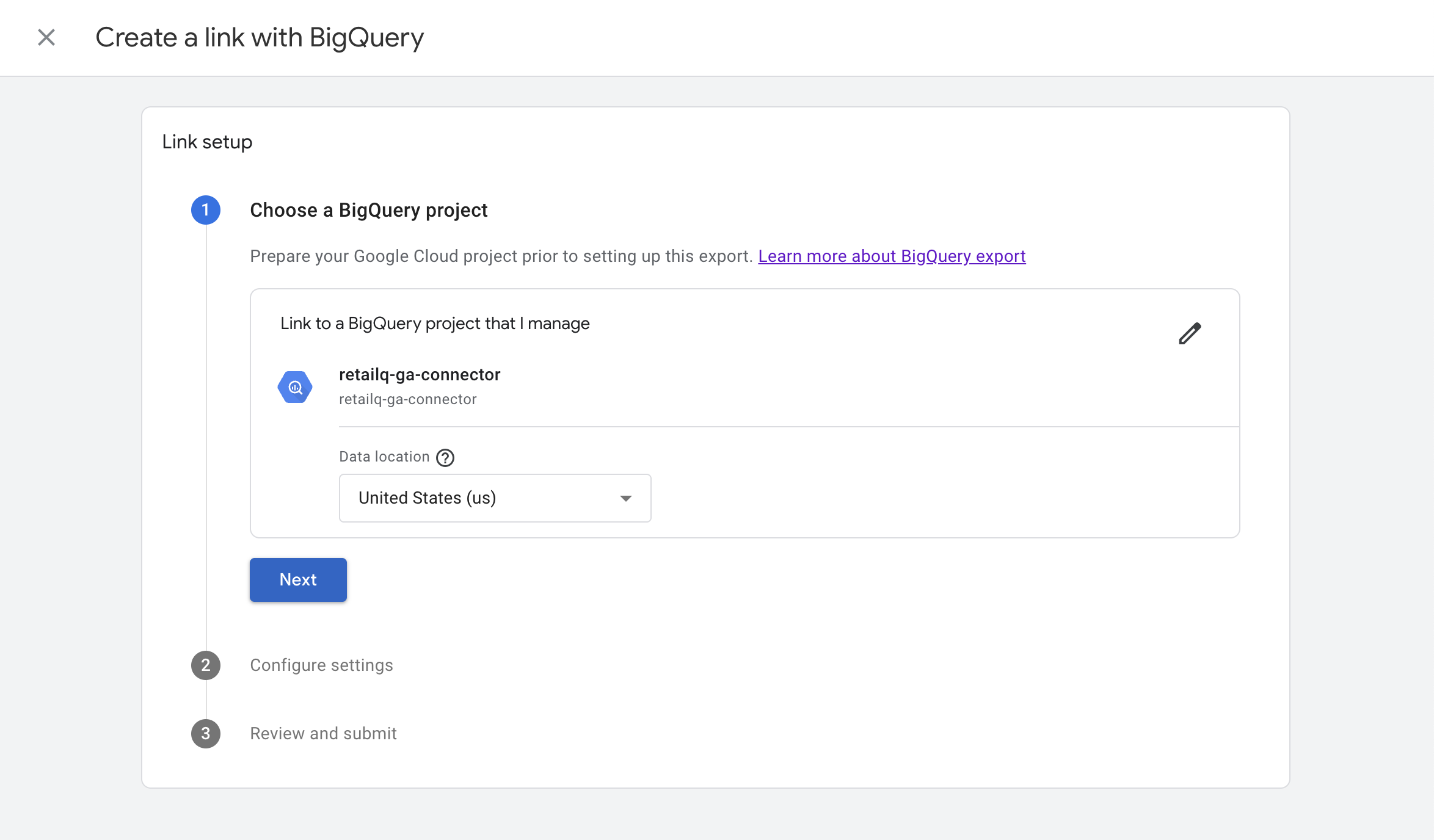
 Enter `retailq-ga4-connector` in the 'Bigquery project ID' field, and then click '**Confirm**'
 Ensure 'Data location' is set to '**United States (us)**'. Click '**Next**'.
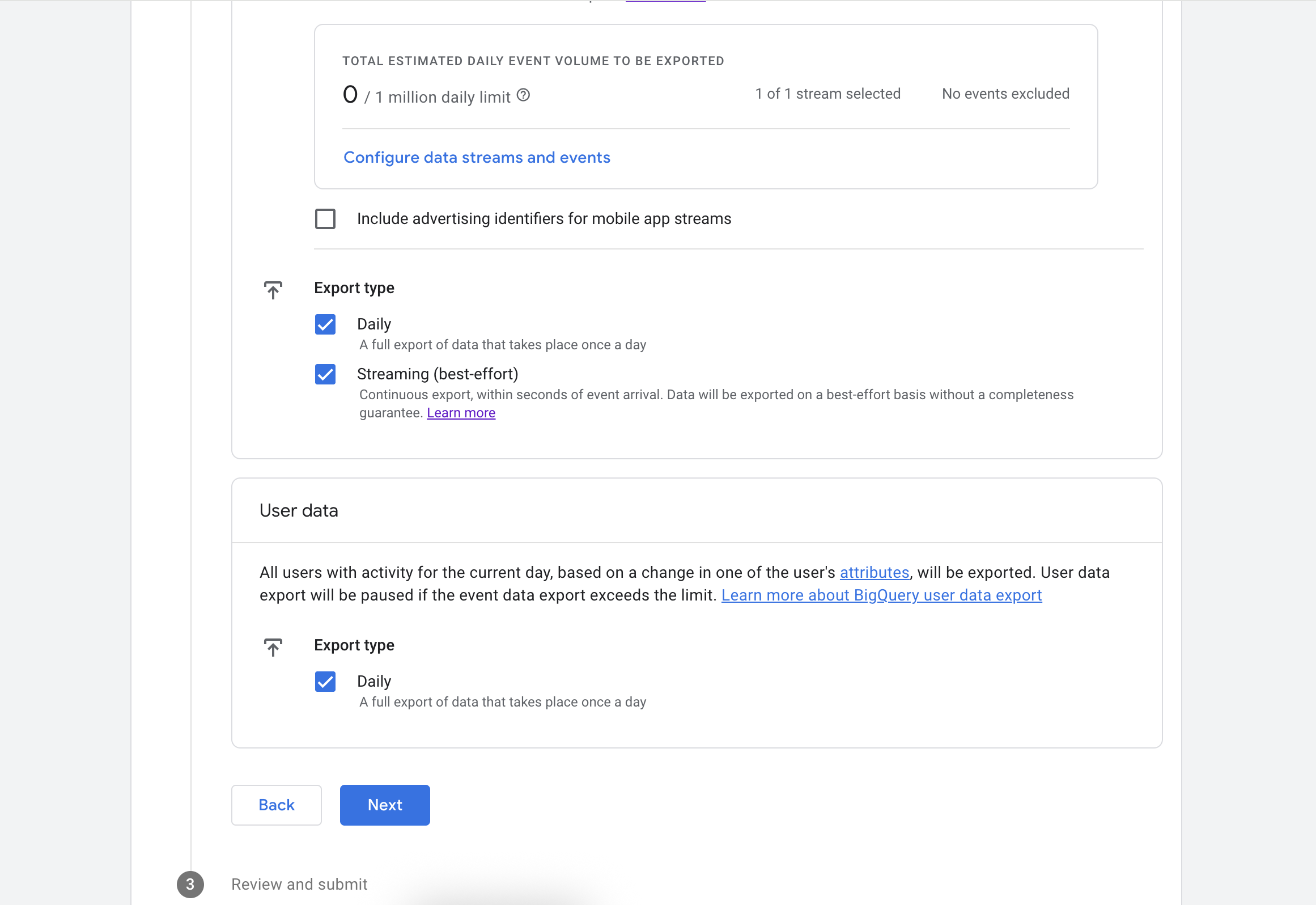
 In the 'Event Data' section, select '**Daily**' and '**Streaming (best-effort)**'. In the 'User Data' section, select '**Daily**'. Click '**Next**'.
 Google Analytics should not contain PII data. It does include any PII data by default, and Google policies mandate that you should not send any PII data to GA4 via custom events or dimensions.
Click '**Submit**'. After a short delay, you should see confirmation that the link was created.
Google Analytics should not contain PII data. It does include any PII data by default, and Google policies mandate that you should not send any PII data to GA4 via custom events or dimensions.
Click '**Submit**'. After a short delay, you should see confirmation that the link was created.
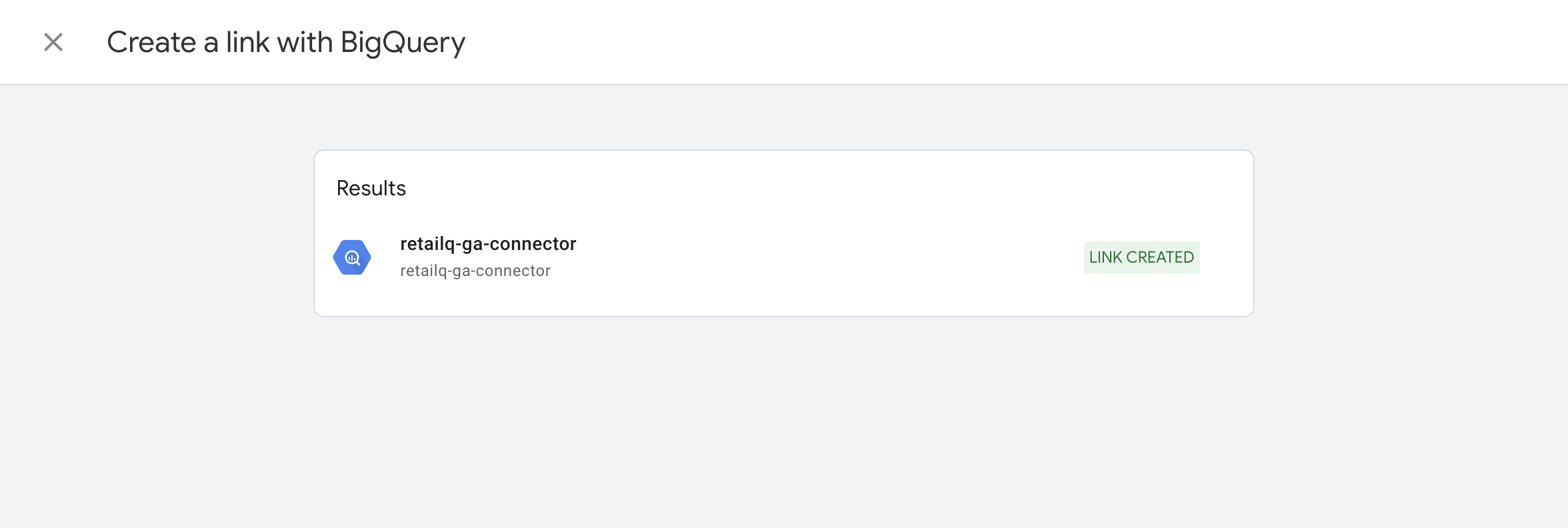 It will take at least 24 hours for Google to start streaming data to retailQ, so if you don't see your data after 36 hours, please [contact support](/support).
## Troubleshooting
Even if you have over 1 million daily events, we should receive most of them. Google sends events during the day, which are unlimited. It also sends events at the end of each day, which is limited to 1 million events if you have not upgraded to a GA360 plan.
If you see a warning that you will exceed the events threshold, [contact support](/support) and we can advise you.
We can use a different, less accurate and less granular method to load your data. Please [contact support](/support) and we can advise you, or connect to your existing BigQuery dataset directly.
It will take at least 24 hours for Google to start streaming data to retailQ, so if you don't see your data after 36 hours, please [contact support](/support).
## Troubleshooting
Even if you have over 1 million daily events, we should receive most of them. Google sends events during the day, which are unlimited. It also sends events at the end of each day, which is limited to 1 million events if you have not upgraded to a GA360 plan.
If you see a warning that you will exceed the events threshold, [contact support](/support) and we can advise you.
We can use a different, less accurate and less granular method to load your data. Please [contact support](/support) and we can advise you, or connect to your existing BigQuery dataset directly.